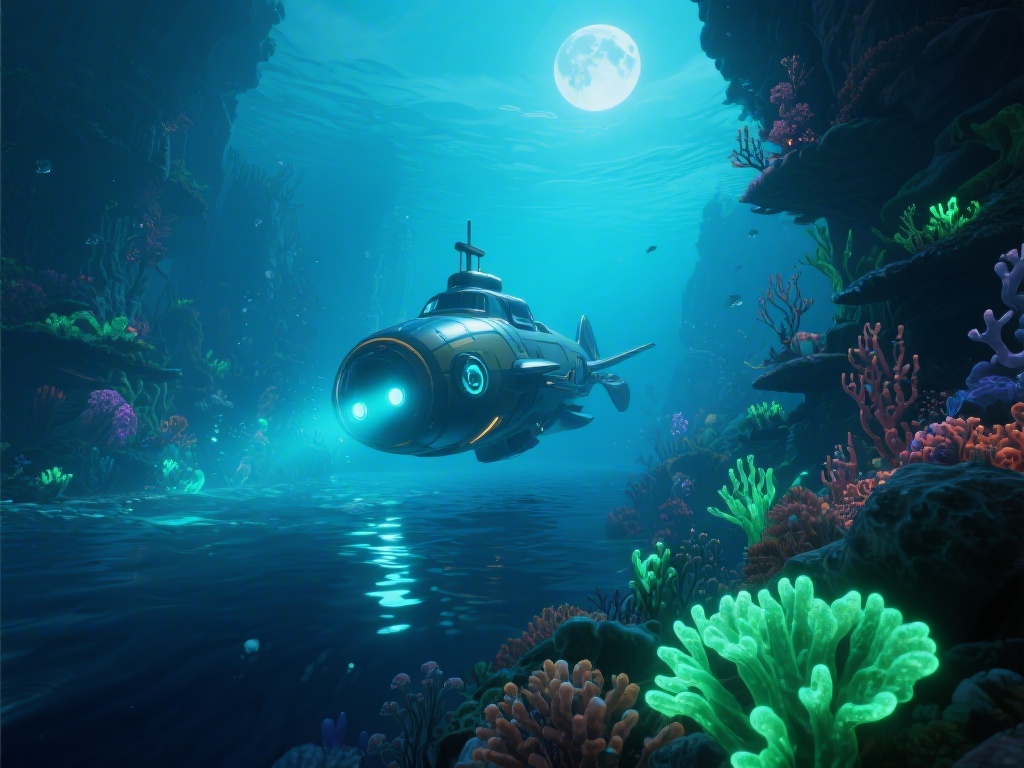
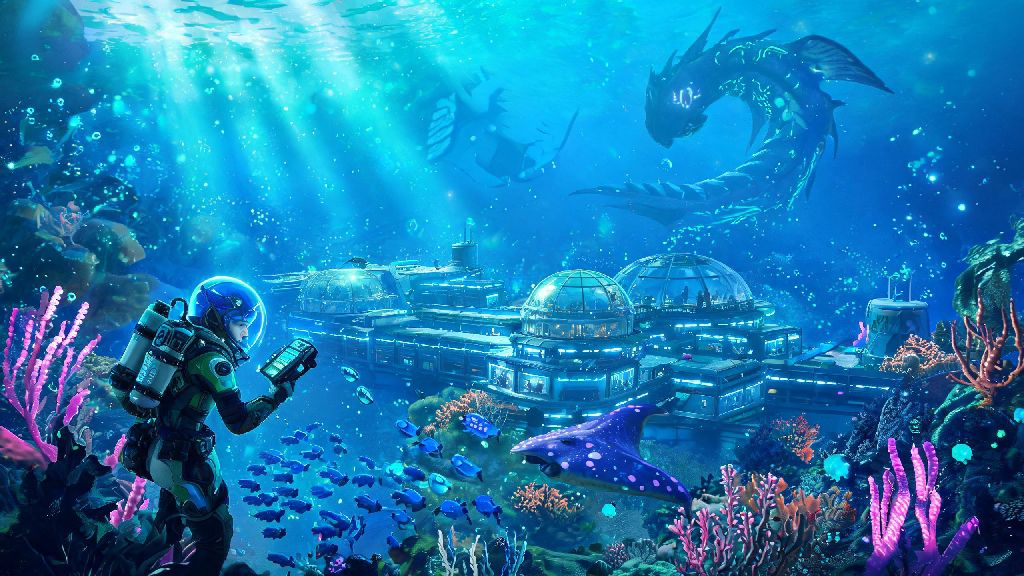
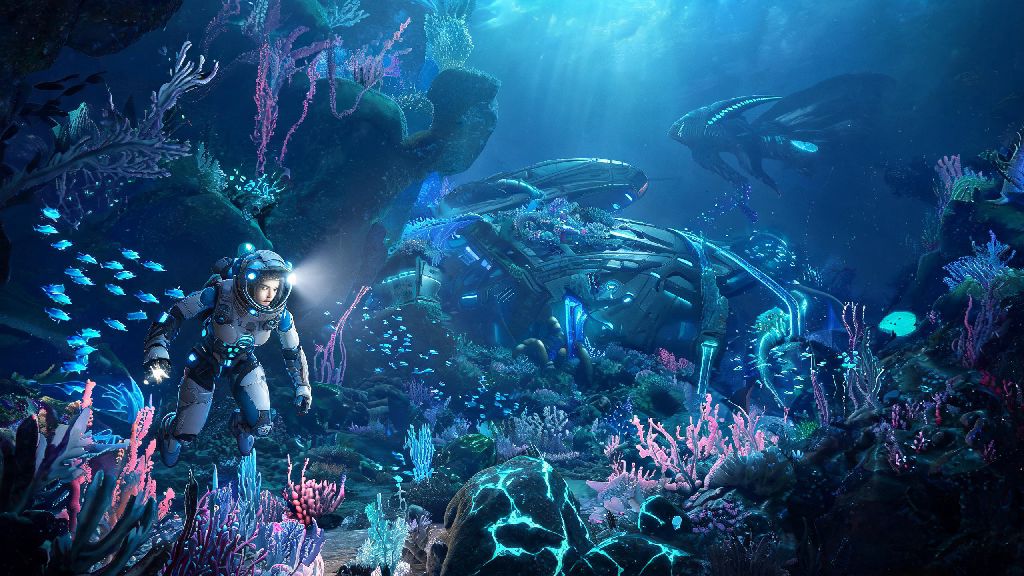
I remember camping on Unknown Worlds’ social media pages for weeks ahead of the first Subnautica 2 playtest, scrolling for hours just to find new subnautica 2 images to use as my phone wallpaper. If you’re reading this, you probably know the feeling: whether you want a sneak peek at new biomes, reference material for a build, or just a cool shot of the new leviathan to show your friends, good quality screenshots of the game are hard to come by if you don’t know where to look. This guide breaks down every reliable source for official and fan-made shots, plus tips to capture your own that look just as good as marketing materials.
Where to Find High-Quality Subnautica 2 Images First
The best sources for unwatermarked, high-resolution shots are always official channels first, because you don’t have to worry about compressed files or stolen content. Official developer social media channels (Twitter/X, Instagram, TikTok) are the first place new previews drop, usually in 4K resolution with no branding overlays if you grab them directly from the post. The devs also often share work-in-progress shots from playtests here that won’t show up anywhere else for months.
The Steam community hub for Subnautica 2 is the next best stop for community content. Thousands of players upload their own captures every week, ranging from casual exploration shots to carefully edited cinematic takes. You can filter by most popular or most recent to find hidden gems, and many players will note if they used mods so you know if the shot matches vanilla gameplay.
If you want exclusive early access shots, join the official Subnautica Discord server. Devs often share test build screenshots in the playtest channels to get feedback, and regular players post unedited captures of new content before it’s announced publicly. You do have to follow server rules to access these channels, but it’s worth it if you want to see content no other site has posted yet.
Key Differences Between Official, Concept, and Community Subnautica 2 Images
Not every shot you see online is a real capture of the current game build, and it’s easy to get disappointed if you mistake concept art for final content. Learning to tell the three main types apart will save you a lot of frustration when you’re looking for accurate previews of gameplay:
- Official pre-release screenshots: Always come with official branding watermarks (or no watermark if released directly by the dev team) and match the current build’s art style, lighting, and creature designs. These are 100% accurate to what you’ll see when you play.
- Concept art: Usually has a more painterly, stylized look, and often comes with a note from the art team explaining it’s a work in progress that may not make it to the final game. Concept art is not a guarantee of final game content, so don’t get attached to a biome or creature you see in a concept shot until the devs confirm it’s been added to the build.
- Community-captured images: May include modded content, custom graphics settings, or personal exploration moments you won’t see in official marketing materials. Most players will note if they used mods in their post description, but if you don’t see a note, it’s safe to assume the shot has minor graphic tweaks at minimum.
For example, I saw a viral shot last year of a glowing purple leviathan that everyone thought was official, until the original poster confirmed it was a mod they’d made for their personal playthrough. Checking the original source of any viral shot will save you from spreading misinformation about new content.
How to Capture Crisp, Unique Subnautica 2 Images During Gameplay
If you want shots that no one else has, capturing your own during exploration is way more fun than downloading someone else’s. You don’t need fancy editing software to get cinematic shots, either – the in-game photo mode has almost every tool you need to get professional-looking results.
First, turn off all HUD elements first for a clean, cinematic shot. You can toggle the HUD off in the settings menu, or use the photo mode shortcut to hide it automatically. I learned this the hard way after waiting 15 minutes for a leviathan to swim into the perfect golden hour light, only to realize my oxygen bar and food meter were taking up the entire left side of the frame.
Next, adjust your settings to make details pop. Turn off motion blur and film grain before you shoot, because those effects look good during gameplay but make screenshots look fuzzy. Use the in-game photo mode’s time slow feature to capture fast-moving creatures like the new leviathan variants – you can slow time down to 10% speed to get the perfect angle without the creature swimming away before you hit the shutter.
Adjust your brightness and contrast settings before shooting to make bioluminescent details pop, especially if you’re shooting in the deep sea biomes. The default brightness settings make bioluminescent coral and fish look dim in screenshots, so bumping the brightness up 10-15% temporarily will make those glowing elements stand out without washing out the rest of the shot. PC players should also switch their Steam screenshot settings to save as PNG files instead of JPG, to avoid compression that blurs fine details.
Some of the best spots to shoot are the Twisted Coral Biome at sunrise, the abandoned alien research facility at night when the internal lights turn on, and the open ocean when a school of bioluminescent fish swims past. Don’t be afraid to experiment with FOV settings either – a low FOV makes giant creatures look more intimidating, while a high FOV makes vast open biomes feel more immersive.
Common Mistakes to Avoid When Looking for or Capturing Subnautica 2 Images
There are a lot of low-quality or even risky sources for screenshots online, so following a few simple rules will save you time and keep your device safe. First, never download image packs from untrusted third-party sites. A lot of sites advertise “free 4K Subnautica 2 wallpaper packs” that are actually full of adware or malware, so stick to official sources or well-known community hubs like Reddit or Steam if you’re downloading shots from other players.
Don’t make the mistake of only taking shots of big, flashy creatures or locations either. Some of the most popular community shots I’ve seen are small, intimate moments: a tiny seahorse-like creature hiding in coral, a sunbeam hitting a stack of metal salvage, or your seatruck parked on a sandy beach at sunset. Those small moments feel more personal and unique than another generic leviathan shot.
If you’re sharing your own shots online, always note if you used mods or altered the graphics settings. It’s fine to use reshade or custom texture mods to make your shots look better, but it’s rude to pass modded content off as vanilla gameplay, especially for new players who might be expecting that look when they buy the game. I always add a small note in my post description if I used a lighting mod, so other players know what’s vanilla and what’s custom.
So whether you’re hunting for subnautica 2 images to use as desktop wallpaper, get a sneak peek at unannounced content, or show off your own exploration achievements, these tips will help you find or create exactly what you’re looking for. Don’t be afraid to experiment with different angles and times of day when you’re taking your own shots – some of the best community shots I’ve seen came from players who spent 20 minutes just floating and waiting for the light to hit a school of bioluminescent fish just right. If you get a shot you’re proud of, share it to the community hubs – you might end up on someone else’s phone wallpaper too.