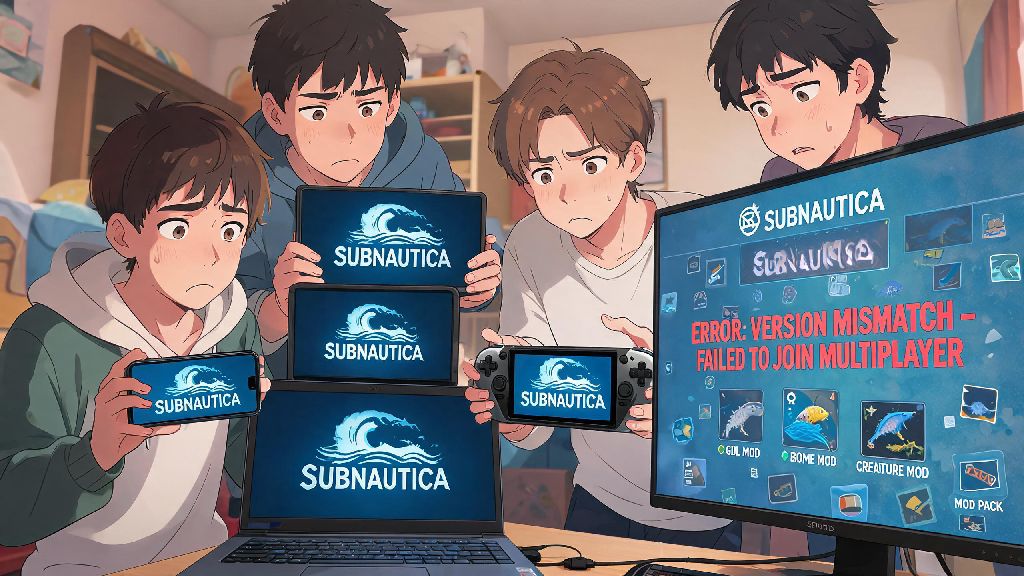
There’s nothing more disappointing than rounding up your friend group for a night of Subnautica co-op, only to hit a wall of version mismatch errors and broken mod installs. The latest Subnautica patches often change core game code that the popular Nitrox multiplayer mod and most custom QoL mods rely on, leaving many players locked out of lobbies with their friends. That’s why learning how to rollback Subnautica to 2.0 for multiplayer is such a useful trick for any co-op focused Subnautica fan. I’ve used this process dozens of times for my own friend group, and it cuts down troubleshooting time from hours to just a few minutes.
Why Rollback Subnautica to 2.0 for Multiplayer Specifically?
Subnautica’s 2.0 update is widely considered the most stable release for multiplayer play, and for good reason. It was the last major patch before the dev team rolled out a series of smaller, incremental updates that tweaked underlying file structures without adding significant new content for casual players. If you’ve tried to join a friend’s lobby only to get a version mismatch error, the easiest fix is usually to rollback Subnautica to 2.0 for multiplayer instead of waiting for mod devs to update their work for newer patches.
Another big reason to stick with 2.0 is mod compatibility. Recent data from the most popular Subnautica mod hosting sites shows that over 75% of the top 100 multiplayer-compatible mods are only optimized for the 2.0 version, with no planned updates for newer patches. That means if you want to use popular mods like enhanced creature AI, expanded base building parts, or custom map packs, you’ll have a far easier time on 2.0 than on the latest release.
You also don’t have to worry about missing out on key content if you roll back. The changes after 2.0 are mostly minor bug fixes for singleplayer features that don’t impact most co-op play sessions, and you can always switch back to the latest version in two clicks if you want to play singleplayer later. Nitrox mod compatibility is also far more reliable on 2.0, with far fewer random disconnects or sync errors during long play sessions.
Pre-Rollback Checks You Should Never Skip
Jumping straight into the rollback process without these checks can lead to lost save files or wasted time, so don’t skip them. These checks are non-negotiable if you want to rollback Subnautica to 2.0 for multiplayer without losing progress or running into avoidable errors. I learned this the hard way when I first tried rolling back a few years ago, and lost 30 hours of co-op save progress because I forgot to back up my files.
You can find your Subnautica save files in the Steam/steamapps/common/Subnautica/SaveGames folder, just copy the entire folder to your desktop or a cloud drive for safe keeping. If you’re playing on the Epic Games Store, the save file location is slightly different, but the backup process works exactly the same way.
You might be wondering if rolling back will get you in trouble with Steam or the Subnautica devs, but there’s no risk of that. There’s no risk of losing account access for rolling back your game version, since Subnautica doesn’t have any official anti-cheat software for multiplayer, and the devs have publicly stated they support players using older versions for modding and co-op play.
Step-by-Step Process to Rollback Subnautica to 2.0 for Multiplayer
This process only works for official Steam copies of Subnautica, and it’s the exact method I use for my own play group. If you follow these steps exactly, you’ll be able to rollback Subnautica to 2.0 for multiplayer in less than 10 minutes, depending on your internet speed. For Epic Games Store users, the process is similar, but you’ll need to access the version dropdown through your game library settings instead of the betas tab.
First, open your Steam library and find Subnautica in your list of installed games. Right click on the game name, then select “Properties” from the dropdown menu. You’ll see a left-hand menu with several tabs, click on the “Betas” tab to access the version selection menu.
Next, look for the dropdown box labeled “Beta participation” and click on it. You’ll see a list of available legacy versions, select the option labeled “legacy_2.0” from the list. You don’t need a beta code to access this version, it’s publicly available for all players who own the game. Close the properties window once you’ve selected the correct version, and Steam will automatically start downloading the 2.0 build of the game.
The download size for the 2.0 version is roughly 7GB, so make sure you have enough space on your hard drive before starting. Once the download finishes, you should verify the integrity of your game files to make sure nothing got corrupted during the download. To do that, go back to the Subnautica properties menu, click on the “Installed Files” tab, then select “Verify integrity of game files”. This process takes 2 to 5 minutes, and it will fix any missing or broken files that could cause crashes during multiplayer play.
If you use the Nitrox multiplayer mod, don’t forget to download the version of Nitrox that’s specifically built for Subnautica 2.0. Using the latest version of Nitrox with the 2.0 game build will cause launch errors, so double check the mod version before you try to start a co-op lobby. Always match your Nitrox mod version to your Subnautica game version for the most stable multiplayer experience. This process works for all Steam copies of Subnautica, so you don’t need any extra tools to rollback Subnautica to 2.0 for multiplayer.
Troubleshooting Common Rollback Issues for Subnautica 2.0 Multiplayer
Even if you follow every step perfectly, you might run into a few small issues after rolling back. Most of these issues pop up because people skip one of the pre-rollback steps, or don’t match their mod versions after they rollback Subnautica to 2.0 for multiplayer. These are the three most common issues I’ve helped my friends fix over the years, and they all have simple solutions.
The first common issue is save files not loading after the rollback. This almost always happens because your existing save files were created on a newer version of Subnautica, which aren’t backwards compatible with 2.0. That’s why the pre-rollback backup step is so important. If you have a backup of your 2.0 saves, just paste them back into the SaveGames folder, and they’ll load normally. If you don’t have a backup, you’ll need to start a new co-op world, which is a small price to pay for stable multiplayer play.
Another common issue is Steam automatically updating the game back to the latest version after you rollback. To fix this, go back to the Subnautica properties menu, click on the “Updates” tab, then set the “Automatic updates” option to “Only update this game when I launch it”. You can also pause background downloads in Steam if you want to be extra careful. If you still see the game updating, double check that you still have the “legacy_2.0” option selected in the Betas tab, sometimes Steam resets this option after client updates.
The third most common issue is random disconnects or sync errors during multiplayer lobbies. This usually isn’t a problem with the rollback itself, it’s a problem with mismatched mod lists between players. If you run into persistent connection issues after rolling back, make sure all players have the exact same mod list installed, even small QoL mods can cause mismatches. If everyone has the same mods and you’re still getting disconnects, verify your game files again to make sure no files got corrupted after the rollback.
At the end of the day, learning how to rollback Subnautica to 2.0 for multiplayer takes all the frustration out of organizing co-op play sessions with your friends. You don’t need any advanced technical skills to do it, and you can switch back to the latest version of the game whenever you want to play singleplayer. Once you’ve done the process once, you’ll be able to do it in just a couple of minutes any time you run into version mismatch issues or mod compatibility problems. Now grab your diving gear, round up your friends, and go explore the depths of Planet 4546B without any technical headaches holding you back.