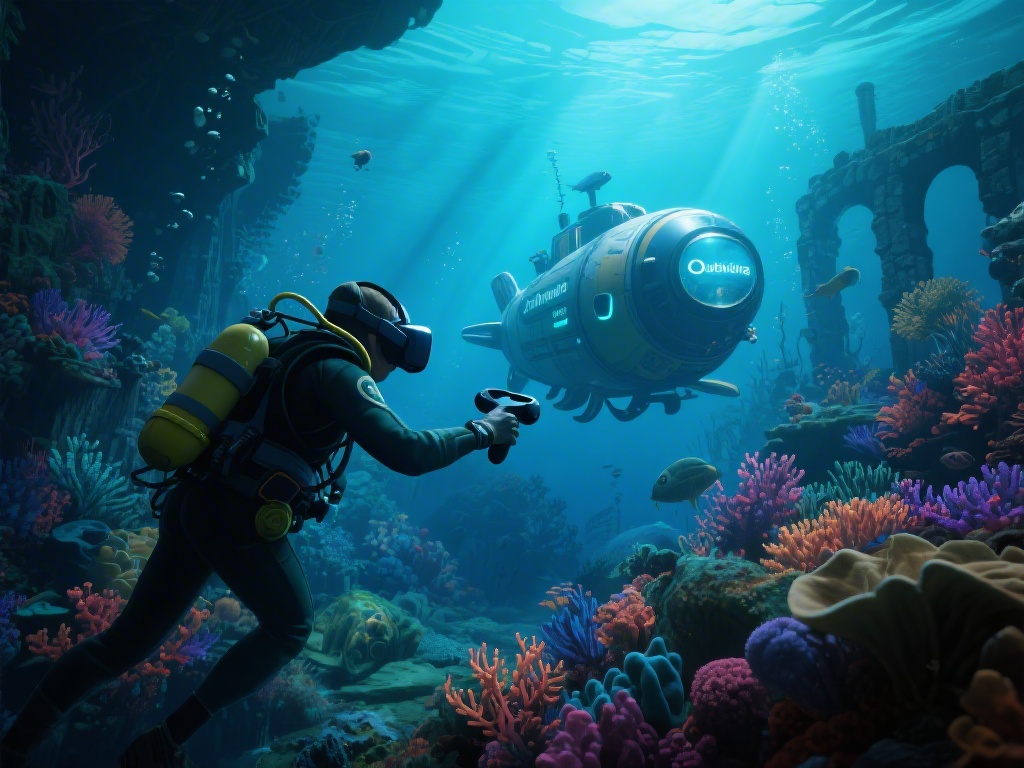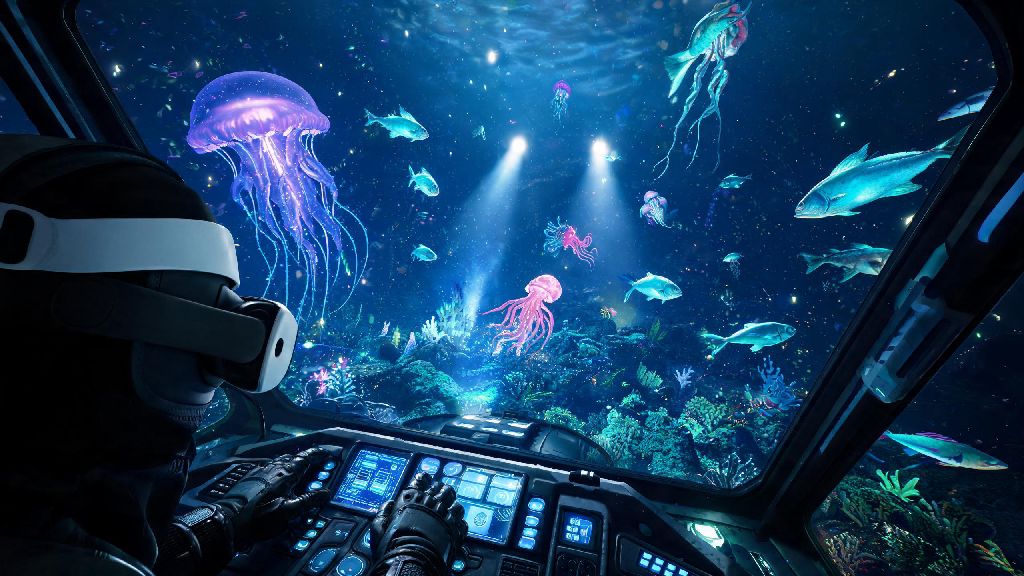
If you’ve ever dreamed of diving into Subnautica’s eerie, bioluminescent alien ocean world up close, you’re not alone. I spent three weekends messing around with janky connection methods and broken settings before I figured out the smoothest way to run the game in VR. I’m here to break down exactly how to play Subnautica VR with Oculus Quest 2, no fancy tech degree required. We’ll cover both wired and wireless setups, performance tweaks, and small hacks to make your deep-sea runs feel as immersive as possible without making you reach for a motion sickness bag halfway through.
How to Play Subnautica VR with Oculus Quest 2: 2 Easy Setup Methods
Before you start adjusting settings, there are a few basic things you’ll need to have ready regardless of which setup method you choose. None of these are expensive or hard to source, and most people already have them on hand if they own a Quest 2 and a gaming PC.
For first-time setups, Wired Link is the best choice for first-time players because it eliminates lag that can trigger motion sickness or cause glitches. All you have to do is plug one end of the Link cable into your Quest 2 and the other into a USB 3.0 port on your PC, then select “Enable Link” when the prompt pops up on your headset. Navigate to your games library in the Oculus PC app, find Subnautica, and launch it in VR mode.
If you hate being tied to your PC, Air Link is a great wireless alternative. You’ll just need to make sure your PC is connected to your 5GHz router via an ethernet cable, and your Quest 2 is connected to the same 5GHz network with no walls or large objects blocking the signal. Always launch Subnautica in non-VR mode first to adjust basic graphics settings before switching to VR, that cuts down on launch glitches for both wired and wireless setups.
Key Settings Adjustments for Smooth Subnautica VR Gameplay
Subnautica was not built natively for VR, so a few small setting tweaks will make a huge difference in how well the game runs. You don’t need a top-tier gaming PC to get a smooth experience, either – I run it on a mid-tier RTX 3060 build with zero stutters on medium settings. The most important thing to prioritize is consistent frame rates, not high resolution or fancy graphical effects.
Set your in-game frame rate lock to 90fps to match the Quest 2’s native refresh rate, that’s the single biggest change you can make to reduce stutter. In the Oculus PC app, set your render resolution to 1.0x to start – you can crank it up to 1.2x if your PC can handle it, but anything higher will cause frame drops that ruin the experience. Turn off motion blur, depth of field, and ambient occlusion first if you’re noticing lag, as these effects have the biggest impact on VR performance without adding much visual value.
If you’re new to how to play Subnautica VR with Oculus Quest 2, start with comfort settings turned all the way up before you tweak for immersion. Disable "head bob" in the gameplay settings immediately – this is the number one cause of motion sickness for new Subnautica VR players. You can also turn on snap turning instead of smooth turning, and set your movement speed to 70% of default until you build up tolerance for VR movement.
Common Subnautica VR Issues and Quick Fixes
Even with the perfect setup, you might run into a few small bugs or glitches every now and then. Most of these are caused by small conflicts between the Oculus software and the game, not hardware issues. Most bugs you run into when figuring out how to play Subnautica VR with Oculus Quest 2 have super simple fixes, so don’t panic if you hit a snag the first time you launch.
The most common issue is a black screen when you launch the game in VR. This usually happens if you didn’t open the Oculus PC app before launching Subnautica, or if your Link/Air Link connection dropped right as the game loaded. If restarting the game doesn’t fix it, verify your game files through Steam or Epic Games to make sure none of the VR files are corrupted. If your controllers aren’t registering in game, re-pair them in the Oculus PC app and make sure you don’t have any custom keyboard or controller mods enabled that conflict with VR inputs.
If you get random crashes when entering the Cyclops or exploring deep biomes, lower your draw distance to medium – this is a known bug that hasn’t been fully patched for VR yet. If you start feeling even slightly queasy, stop playing immediately – pushing through will only make it harder to enjoy VR sessions later, and most people build up tolerance over 2-3 short 20-minute sessions.
Tips to Make Your Subnautica VR Adventure More Immersive
Once you’ve got the basics running smoothly, there are a few small changes you can make to turn your VR playthrough into a truly unforgettable experience. You don’t need any extra accessories for these, just a little bit of time to test what works for your play style. Once you’ve got the hang of how to play Subnautica VR with Oculus Quest 2, you can start experimenting with these tweaks to make the ocean feel even more real.
First, swap out the built-in Quest 2 speakers for a pair of over-ear noise cancelling headphones. Subnautica’s 3D audio is one of its best features, and being able to hear the distant roar of a Reaper Leviathan coming from behind you makes the survival experience feel so much more intense. Play in a dark room with no background lights to make the bioluminescent creatures and dark deep sea biomes pop even more.
You don’t have to play seated, either. Standing up makes swimming and navigating your base feel way more natural, just make sure you have a clear 6x6 foot play space with no tripping hazards. If you want a more hardcore survival experience, you can turn off all HUD elements and map a HUD toggle to one of your controller buttons for when you need to check your oxygen level or inventory. Take 10 minute breaks every hour to rest your eyes, and you’ll be able to play for hours without fatigue.
At the end of the day, half the fun of playing Subnautica in VR is experimenting to find what works best for you. Some people love zipping around on a seaglide with smooth turning cranked all the way up, others prefer slow, deliberate exploration with snap turning and limited HUD. No matter your play style, once you get the settings right, learning how to play Subnautica VR with Oculus Quest 2 is one of the most immersive gaming experiences you can have right now. Don’t let small setup hiccups stop you from exploring that alien ocean – you’ll be glad you put in the extra 10 minutes to get everything running smoothly.