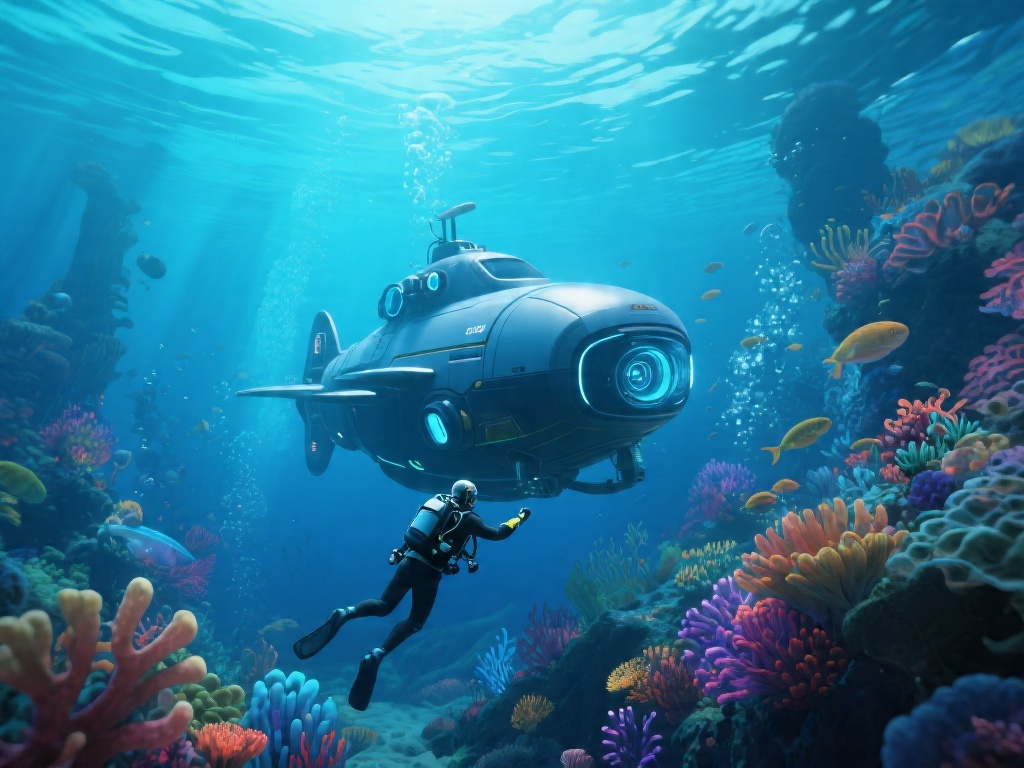
If you’re a fan of open-world underwater survival games and own a standalone VR headset, you’ve almost certainly asked: can you play Subnautica on the Oculus Quest 2? There’s nothing quite like diving into the alien oceans of 4546B in full 360-degree VR, with creatures swimming right past your face and the crushing pressure of the deep feeling like it’s inches away. I’ve tested every possible way to run Subnautica on my own Quest 2 over the past year, and I’m breaking down exactly what works, what doesn’t, and how to get the smoothest possible experience without spending extra cash on unneeded accessories.
Can You Play Subnautica on the Oculus Quest 2 Natively, or Do You Need a PC?
The short answer is no, there’s no official native version of Subnautica available for direct download on the Quest 2 store. I know a lot of creators online talk about sideloading a fan-made port of the game, but those versions are super buggy, often crash mid-exploration, and don’t support official updates or DLC. You also run the risk of corrupting your save files if you use an unofficial port, which is a nightmare if you’ve spent 20+ hours building out your base.
To play the official, fully supported version of the game, you will need a VR-capable Windows PC with at least an NVIDIA GTX 1060 or equivalent AMD GPU, 8GB of RAM, and a quad-core Intel i5 or similar processor. If you have a PC that meets those specs, you’re good to go. Even mid-range gaming PCs built in the last 5 years can handle running Subnautica on the Oculus Quest 2 at steady frame rates, as long as you adjust the settings properly.
Step-by-Step Setup to Play Subnautica on Your Oculus Quest 2
Setup only takes 5 to 10 minutes if you have all the required hardware ready to go. I recommend testing wired connectivity first before trying wireless, to make sure you don’t run into unnecessary lag right off the bat. Follow these simple steps to get up and running:
I always recommend testing wired Link first if you have a compatible cable, because it eliminates almost all lag that can ruin fast-paced underwater movement. Air Link works great too if you have a strong Wi-Fi 6 router, but you might notice slight stuttering when you’re swimming through dense kelp forests or looking at lots of small fish at once. Make sure you turn off any background downloads on your PC or network before launching, because even small bandwidth usage can cause Air Link to drop frames unexpectedly. This setup works for both the original Subnautica and the Below Zero sequel, so you don’t have to adjust any settings when you switch between the two if you regularly play Subnautica on the Oculus Quest 2.
Top Performance Tweaks for a Smooth Subnautica VR Experience
Even if you meet the minimum PC specs, Subnautica’s detailed open world can be hard to run smoothly in VR, especially when you’re exploring deep biomes with lots of particle effects. I’ve tested dozens of setting combinations to find the best balance between visual quality and performance, so you don’t have to spend hours tweaking sliders yourself.
Lower your in-game render resolution to 80% or 90% — you won’t notice a big drop in visual clarity, but you’ll free up a lot of GPU power for smoother frame rates. Next, turn off shadow quality and ambient occlusion completely. Those two settings are responsible for almost 30% of the performance hit in Subnautica VR, and they barely add anything to the immersive underwater feel. Set your field of view to between 90 and 100 degrees — anything wider can cause motion sickness for most players, and anything narrower makes it feel like you’re swimming with goggles on that are too tight.
If you still notice stuttering when you enter new biomes, lower your vegetation draw distance by 20% to 30%. The extra pop-in isn’t noticeable when you’re moving through the water, and it will stop the game from freezing for a second when new terrain loads. I get motion sickness pretty easily with VR games that have smooth movement, and I found that turning on the “head bob” reduction setting in Subnautica’s VR menu made a huge difference for longer play sessions. I used to get constant frame drops when exploring the Lost River biome until I turned off shadow quality, and now I get a steady 90fps even when I’m being chased by a Reaper Leviathan.
Common Issues Playing Subnautica on Oculus Quest 2 (And How to Fix Them)
Even if you follow all the setup steps perfectly, you might run into a few common bugs that are specific to running Subnautica on Quest 2 via Link or Air Link. I’ve run into almost all of these myself, so I have quick fixes for every one.
First, the game launches on your PC screen but doesn’t show up in your Quest 2 headset. That usually happens if you launched the non-VR version of the game by mistake. Close the game completely, go to your library, right click on Subnautica, and select Launch in VR mode to fix this. Second, you notice constant drift, where your in-game view slowly turns even when you’re sitting still. That’s a common tracking issue with Quest 2 when you’re playing in a room with low light, or if you have reflective surfaces like mirrors near your play area. Turn on a few soft lights around your play space, and cover any mirrors, and the drift will stop immediately.
Third, you get extreme motion sickness even when you’re used to playing other VR games. Subnautica’s swimming movement can be disorienting for new VR players, so turn on comfort mode and snap turning in the game’s VR settings first. You can also try sitting down while you play until you get used to the movement, instead of standing up and moving around your play space. I also recommend taking 5 minute breaks every 30 minutes when you first start playing, until your body gets used to the underwater movement.
At the end of the day, the answer to can you play Subnautica on the Oculus Quest 2 is a resounding yes, as long as you have a VR-capable PC to stream the game from. The experience is far more immersive than playing on a flat screen, and you’ll feel like you’re actually exploring the alien oceans of 4546B instead of just controlling a character on a monitor. If you follow the setup steps and performance tweaks we covered, you’ll have a smooth, bug-free experience that makes every encounter with a Reaper Leviathan feel just as terrifying as it should. You don’t need any fancy extra accessories to get started, either — just the Quest 2 you already own, a compatible PC, and a copy of the game.